To take card payments through Country Stalls and receive the seller portion of each order, connect your stall to Stripe. Stripe calls this a connected account (rather than a customer account). Country Stalls uses Stripe-hosted Express onboarding, so your identity documents and bank details are entered securely with Stripe.
Current as at 12 August 2026. Stripe can change verification questions as regulations, your business type or your account status change. Treat the questions in Stripe's hosted form and any alerts in your Stripe Dashboard as the final word for your account.
What Stripe Connect does for a Country Stalls seller
Country Stalls provides the stall page, cart, stock and order tools. Stripe handles card processing, identity verification, the connected seller account and bank payouts. Country Stalls only marks card checkout ready when Stripe confirms that your details have been submitted, charges and payouts are enabled, and no requirements are currently overdue.
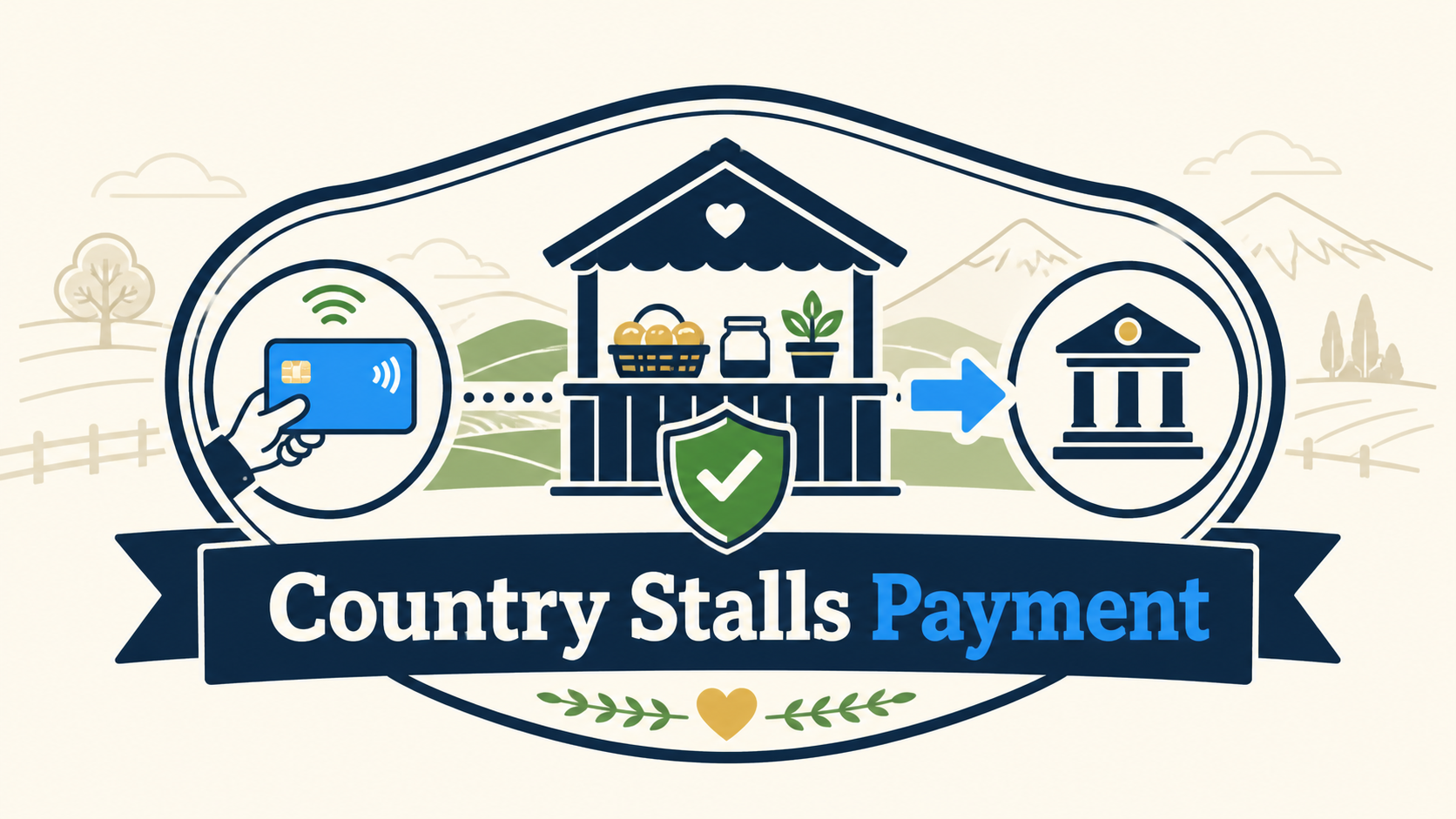
| 1. Buyer Adds your products to the Country Stalls cart | → | 2. Secure card checkout Payment is processed using Stripe | → | 3. Country Stalls order Commission and seller net amount are recorded | → | 4. Your connected account Seller funds move to Stripe, then pay out to your bank |
This is different from merely listing cash, EFTPOS, your own website or direct-debit instructions. Integrated checkout must be enabled if you want Country Stalls cart, inventory and order tracking to work with online card payments.
Before you start: prepare this information
Allow about 10–20 minutes if your records are ready. Stripe decides the exact questions dynamically from the country, legal structure and requested payment capabilities. Have the following available:
- Your Country Stalls sign-in and a saved stall with a stall name and contact email. Country Stalls requires both before onboarding can begin.
- Your legal business type: for example, an individual/sole trader, partnership, company or other registered organisation.
- The legal name, date of birth, residential address, email and mobile number of the person responsible for the Stripe account.
- Your legal business name, trading name, physical address and registration or tax details where they apply to your entity.
- Details for an eligible bank account that can receive NZD payouts. Use the account-holder name that matches your legal or business records.
- A clear description of what your stall sells. Keep your Country Stalls stall page accurate and complete because Stripe may check the business web presence.
- A current government-issued photo ID and possible proof of home address or business/entity documents in case Stripe cannot verify the information automatically.
Step-by-step: connect Stripe to your stall
Sign in and open Stall Settings
Sign in to Country Stalls, go to your Seller Dashboard, and open the stall's settings. You can also go directly to Stall Settings. If you manage more than one stall, first make sure you are editing the correct one.
Complete the stall basics
Save a stall name, main contact email, description and the other core stall details. A missing stall name or contact email prevents Country Stalls from starting Stripe onboarding.
Enable integrated Country Stalls payments
In the payment section, switch on Enable Country Stalls Payment Gateways. This activates the integrated shopping, stock, order and checkout path. Under the gateway options, tick Stripe (Online).
Review fees before continuing
Read the Fees notice shown in Stall Settings. Card orders are subject to Stripe processing fees plus the effective Country Stalls commission displayed for your stall. The setup page's current figure is authoritative; do not rely on an old screenshot or a percentage quoted elsewhere.
Choose your preferred payout schedule
Select Daily, Weekly or Monthly. This controls payout cadence after funds become available; it does not make card funds settle instantly. Stripe may apply country-, risk- or account-specific timing.
Select Start Onboarding
Country Stalls creates or refreshes your Express connected account and sends you to a Stripe-hosted form. The Account Link is short-lived and single-use. Complete it in the browser you opened from Country Stalls; do not copy it into chat, email it or share it with another person.
Enter legal, representative and bank details in Stripe
Choose the correct business type and enter information exactly as it appears in official records. Add the bank account for payouts and accept Stripe's service terms. Stripe may request details about owners, directors or people who control a company.
Upload documents only when Stripe asks
If automatic checks do not match, follow the prompt in Stripe's form or Dashboard. Upload sensitive documents only through Stripe—not by email and not to Country Stalls. Check that names, dates of birth and addresses match the account details before resubmitting.
Return to Country Stalls and check the status
After you finish or choose to save for later, Stripe sends you back to Country Stalls. Returning does not by itself prove onboarding is complete. Country Stalls refreshes the account status and shows either a ready confirmation or an onboarding-in-progress warning.
How to tell when the connection is ready
| What you see | What it means | What to do |
|---|---|---|
| Stripe is connected and ready for card payouts | Stripe has enabled charges and payouts, accepted submitted details and reports no currently due or past-due requirements. | Your integrated card checkout can go live. Keep an eye on future Stripe requests. |
| Stripe onboarding is in progress | Information is saved, but verification, bank details or another requirement remains outstanding or under review. | Select Continue Onboarding and complete every item Stripe displays. |
| Continue setup on the Seller Dashboard | Country Stalls does not yet consider the connected account ready for both charges and payouts. | Open the link, review Stripe alerts and submit or correct the requested details. |
| Restricted or an action-required message in Stripe | A capability is inactive or Stripe needs more information. | Open the Stripe Dashboard from Country Stalls and resolve the named requirement. |
Verification can be immediate, but some information may be pending review. If you exit early, use the Country Stalls Continue Onboarding button to generate a fresh link. A reused, expired or previewed Account Link may no longer work; this is expected security behaviour.
Payout timing in New Zealand
Your selected schedule is the cadence—not a guarantee that money reaches your bank on that same day. Stripe's current payout documentation lists New Zealand's standard settlement timing as four business days. Stripe also says an account's first live payout is typically scheduled 7–14 days after the first successful payment and may take longer depending on the business and risk review. Bank processing can add time.
Use the Stripe Dashboard button in Country Stalls to view balances, upcoming payout dates and completed payouts. If a payout is late, first check whether Stripe shows a verification alert, a negative balance, a bank-account problem or a payout status that is still pending.
If you run more than one Country Stalls stall
When another stall you own already has a usable Stripe integration, Stall Settings may offer Use the same Stripe integration as another of my stalls. Select the existing stall to reuse that payout account without repeating onboarding. Only use this when the stalls should genuinely share the same legal account and bank payout destination.
Troubleshooting common setup problems
| Problem | Likely cause | Fix |
|---|---|---|
| Start Onboarding is unavailable | The stall has not been saved, or integrated payments and Stripe are not enabled. | Save the stall, enable Country Stalls Payment Gateways, select Stripe (Online), then try again. |
| Country Stalls asks for a stall name or email | A required setup field is blank. | Add the stall name and main contact email, save, and restart onboarding. |
| The Stripe link expired | Account Links are single-use and short-lived, or a messaging app preview opened it first. | Return to Country Stalls and select Continue Onboarding for a new secure link. |
| You returned, but checkout is still unavailable | Leaving Stripe's form is not the same as passing verification. | Open Continue Onboarding or the Stripe Dashboard and finish the remaining requirement. |
| An identity document was rejected | Common causes include a screenshot, crop, glare, low resolution, expiry or details that do not match. | Use a clear original image or direct scan and make the Stripe account details match the document. |
| Payouts are not enabled | Bank information, identity verification or another compliance check is incomplete. | Open the Stripe Dashboard, read the exact action required and submit it there. |
Security checklist
- Start Stripe onboarding only from the signed-in Country Stalls settings or dashboard.
- Check that the hosted page uses an https:// address on a Stripe domain before entering sensitive details.
- Never share a one-time Account Link, verification code, password, complete bank details or identity document by email or message.
- Keep the Country Stalls stall description, products and contact details truthful and current.
- Return when Stripe requests updated information; an account that is ready today can receive a future compliance requirement.
Ready to connect?
Open Stall Settings to enable the Country Stalls gateway and start Stripe onboarding, or read how Country Stalls works for sellers before deciding which payment options suit your stall.